
Google Chrome has several features that most users never explore. Some are experimental settings hidden behind Chrome flags, while others are built directly into the browser.
These features can change how Chrome handles downloads, renders webpages, manages open tabs and displays online content. However, enabling experimental flags does not automatically make Chrome faster or more secure. In some cases, changing them can actually reduce performance or introduce unexpected behavior.
Another complication is that Chrome flags frequently change. A flag recommended in an older article may have been removed, enabled by default or replaced with a regular browser setting.
In this guide, we'll explore useful Chrome flags for 2026, explain which older flags are no longer necessary and show you how to access several built in Chrome features that offer similar benefits.
What are Chrome flags?
Chrome flags are experimental settings that allow users and developers to test features that may not yet be ready for general release.
Chrome flags are primarily designed for experimentation. Google advises using development versions of Chrome, such as Beta, Dev or Canary, when testing experimental functionality rather than making potentially disruptive changes to your everyday browser.
Some flags allow users to test new browser capabilities, while others provide controls for rendering, networking or developer experimentation.
However, Chrome flags differ from regular browser settings. A flag may disappear between Chrome releases, change its behavior or be available only on particular operating systems.
How to enable Chrome flags
-
Open Google Chrome.
Launch Chrome on your computer. For experimental testing, consider using Chrome Beta or Canary. -
Access the Chrome flags page.
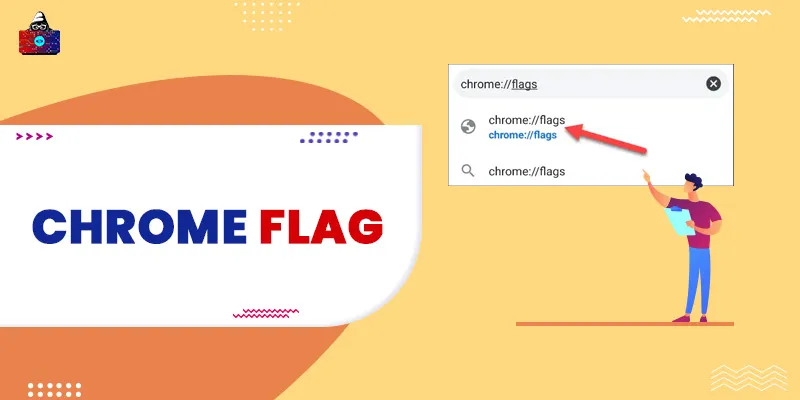
Type the following address into your browser's address bar:
chrome://flags
Copy -
Search for a flag.
Use the search field at the top of the page to find the experimental setting you want to explore. -
Change its configuration.
If the flag is available, select its dropdown menu. Depending on the flag, you may see options such as Default, Enabled or Disabled. -
Relaunch Chrome when prompted.
Relaunching applies the change. Save any important work beforehand and check whether the feature behaves as expected.
Some changes may already be active by default. If a flag is missing, do not assume the corresponding feature is unavailable. It may have been removed or moved into regular browser settings.
Important: Chrome flags are not guaranteed performance optimizations. Change one flag at a time and measure whether it actually improves your browsing experience. Avoid disabling browser security features merely to obtain a perceived speed improvement.
Quick comparison of useful Chrome flags
|
Chrome flag |
Primary purpose |
Recommendation |
|
Parallel Downloading |
Experiment with downloading files in parallel |
Worth testing |
|
Experimental QUIC Protocol |
Control experimental networking behavior |
Advanced users |
|
Experimental Web Platform Features |
Enable experimental browser APIs |
Web developers |
|
GPU Rasterization |
Experiment with graphics rendering |
Troubleshooting |
|
Smooth Scrolling |
Adjust scrolling behavior where available |
Optional |
|
Auto Dark Mode for Web Contents |
Experiment with forced dark rendering where available |
Optional |
The availability of these flags depends on Chrome's version, operating system and release channel. Some may already be enabled by default or no longer be exposed in a particular build.
6 Chrome flags worth knowing about in 2026
1. Parallel Downloading
Download performance
Parallel Downloading is an experimental setting associated with Chrome's download system.
Instead of always retrieving a file through a single connection, parallel downloading can divide an eligible download into multiple segments and retrieve them concurrently.
Chromium's source code continues to document this flag as a mechanism for accelerating downloads.
How it works
Suppose you're downloading a large software installation file. When parallel downloading is supported, Chrome may retrieve different sections of that file concurrently.
This can sometimes improve download performance. However, the result depends on factors such as your internet connection, the download server and whether the download qualifies for parallelization.
It does not guarantee faster downloads.
How to enable it
Enter chrome://flags/#enable-parallel-downloading into Chrome's address bar. If the flag appears, select Enabled and relaunch the browser.
Download an appropriately sized test file and compare the result against Chrome's default configuration.
When to use it: Consider experimenting with Parallel Downloading if you regularly download large files and want to investigate whether parallel connections improve transfer performance on your connection.
Limitations: Some downloads will show little or no improvement. Parallel connections may also be restricted by the server, and aggressive concurrent downloading can affect other network activity.
2. Experimental QUIC Protocol
Networking
QUIC is a modern transport protocol designed to support secure, low-latency connections. HTTP/3 uses QUIC rather than the TCP-based transport used by earlier HTTP versions.
Chrome's experimental QUIC flag has historically allowed developers and advanced users to control QUIC support. The flag remains documented in Chromium's source repository.
How it works
QUIC uses UDP as its transport foundation and incorporates encryption, connection establishment and other mechanisms designed for modern internet communication.
However, QUIC is no longer simply an experimental proposal. It is an established protocol used by HTTP/3.
Consequently, users should not assume that manually enabling the experimental QUIC flag will make their browsing faster.
How to access it
Enter chrome://flags/#enable-quic into the address bar.
If the flag is available, review its current state. Chrome may already support QUIC without requiring any configuration.
When to use it: This flag is primarily relevant to developers, network engineers and advanced users investigating networking compatibility or protocol behavior.
Limitations: Changing QUIC behavior can affect connections differently depending on the server, network configuration, firewall and browser version.
For additional networking concepts, read our guide on the difference between TCP and UDP .
3. Experimental Web Platform Features
Web development
Experimental Web Platform Features allows developers to activate certain browser capabilities that have not yet been enabled for general use.
Unlike flags that affect a single browser feature, this setting can enable multiple experimental web platform capabilities.
Google specifically documents it as a way to test selected experimental APIs and encourages developers to use appropriate testing environments.
How it works
Browser developers regularly introduce new capabilities for websites and web applications.
Before these capabilities become broadly available, developers may need a way to experiment with their behavior.
This flag provides access to certain experimental features so developers can test implementations and investigate compatibility.
The exact features it activates change as Chromium evolves.
How to enable it
Enter chrome://flags/#enable-experimental-web-platform-features into Chrome.
If available, change its state to Enabled and relaunch the browser.
Only enable this setting when you have a specific feature to test and understand the possible compatibility implications.
When to use it: This flag is intended for frontend developers, web application engineers and people experimenting with browser technologies.
Limitations: Experimental APIs can change or disappear. Code that depends on them should not automatically be considered suitable for production websites.
4. GPU Rasterization
Graphics rendering
GPU rasterization is a graphics-rendering technique that uses a graphics processor to rasterize eligible webpage content.
Rasterization is the process of converting graphical information into pixels that can be displayed on a screen.
Chromium has historically exposed GPU rasterization controls, and its documentation describes their rendering purpose. However, older source-code references should not be treated as proof that the same user-facing flag is available in every current Chrome build.
How it works
Modern web browsers perform considerable graphics processing when rendering websites.
Graphics hardware can handle certain rendering operations efficiently, but browser performance depends on more than whether a dedicated GPU is available.
Chrome already manages many rendering decisions automatically. Forcing a particular graphics configuration does not necessarily improve page loading or animation performance.
How to investigate it
First, enter chrome://gpu into the address bar.
This page provides information about Chrome's graphics capabilities and hardware acceleration status.
If you're investigating a specific rendering issue, you can also search for GPU-related options in chrome://flags.
Do not change multiple graphics flags simultaneously. Otherwise, determining which modification caused a particular result becomes difficult.
When to use it: GPU-related settings are relevant when troubleshooting rendering problems or investigating browser graphics behavior.
Limitations: Unsupported graphics configurations can introduce visual glitches, instability or increased resource consumption.
5. Smooth Scrolling
Scrolling behavior
Smooth Scrolling adjusts how supported browsers animate scrolling movement.
Rather than moving through a webpage in abrupt increments, smooth scrolling creates a more continuous visual transition.
This can make navigating lengthy webpages feel more natural, particularly when using devices such as a mouse with a scroll wheel.
However, smooth scrolling has long been integrated into Chrome on several platforms. Older Chromium source code documents the flag, but availability and default behavior have varied across operating systems.
How to check it
Open Chrome's experimental settings and search for Smooth Scrolling.
If the option is available, review its current configuration before changing anything.
If you cannot find it, Chrome may already handle scrolling through its default implementation or operating-system settings.
When to use it: Consider this setting only if you're investigating inconsistent or uncomfortable scrolling behavior.
Limitations: Smooth scrolling is not a guaranteed solution to slow webpage rendering. Websites with expensive scripts, complicated layouts or heavy animations can still experience scrolling problems.
6. Auto Dark Mode for Web Contents
Experimental appearance
Auto Dark Mode for Web Contents is an experimental feature associated with automatically adjusting webpage colors to produce a darker appearance.
Unlike Chrome's regular dark appearance setting, forced dark rendering attempts to modify webpage colors even when the website does not provide its own dark theme.
Its historical flag is not guaranteed to be available in current Chrome releases.
How it works
When forced dark rendering is supported, Chrome can transform certain webpage colors to create a darker display.
This can be useful when browsing websites that have bright backgrounds but do not provide a dark appearance option.
However, automatically transforming colors can also produce unexpected results.
For example, images, text, buttons or backgrounds may become difficult to distinguish on certain websites.
How to check it
Search for Auto Dark Mode for Web Contents in chrome://flags.
If the flag is unavailable, use Chrome's standard appearance controls or the individual website's dark-mode setting instead.
When to use it: This is an optional experiment for users who prefer darker webpages.
Limitations: Forced dark rendering may create readability problems. It should not be presented as a proven way to reduce eye strain or improve battery life on every device.
Built in Chrome features that replace several older flags
Many older articles continue recommending Chrome flags that are now standard browser capabilities. These should be explained separately so readers don't waste time searching for controls they no longer need.
1. Memory Saver
Memory Saver reduces the memory used by inactive tabs so Chrome can prioritize active webpages and other applications.
Open chrome://settings/performance to find the available performance settings. Google has expanded Memory Saver with different levels of resource management.
Useful for: People who frequently open numerous browser tabs or run memory-intensive desktop applications.
2. Reading Mode
Chrome's Reading mode creates a simplified view of supported webpages, allowing users to focus on written content without the original page's distracting layout.
In April 2026, Google announced an improved immersive, full-page reading experience. Users can right-click a supported webpage and select Open in reading mode.
Useful for: Reading lengthy articles, studying and reducing visual distractions.
3. Tab Search
Tab Search helps users locate open webpages without manually checking every tab.
Chrome provides keyboard shortcuts and address-bar search functionality. On Windows and Linux, use Ctrl + Shift + A. On macOS, use Command + Shift + A. You can also type @tabs into the address bar.
Useful for: Researchers, programmers and anyone who regularly works with multiple browser windows.
4. Vertical Tabs
Vertical Tabs moves the traditional horizontal tab strip to the side of the browser window.
Google began introducing this feature in April 2026. To activate it on a supported desktop version, right-click the tab strip and select Show Tabs Vertically.
Useful for: People who frequently switch between multiple tabs and want more space to read webpage titles.
5. Tab Hover Preview Images
Hover previews allow you to identify a webpage without opening its tab.
On supported Windows, Linux and ChromeOS versions, open Settings, select Appearance and locate the Tab Hover Preview Card option to enable or disable preview images.
Useful for: Quickly locating specific webpages among numerous open tabs.
6. Energy Saver
Energy Saver helps reduce Chrome's energy consumption by limiting certain background activities and visual effects.
It is a standard Chrome performance feature rather than an experimental flag. Its configuration options are available under Chrome's performance settings.
Useful for: Laptop users who want to manage browser energy consumption.
7. Safety Check
Safety Check is part of Chrome's built-in security functionality.
Google has expanded it to help identify issues involving browser security, permissions and unwanted notifications.
Useful for: Reviewing important browser security settings without relying on experimental security flags.
8. Split View
Split View allows users to work with two webpages side by side within a single Chrome window.
Google announced Split View as part of its February 2026 productivity updates. It helps users compare information without repeatedly switching between browser windows.
Useful for: Comparing products, researching topics, reviewing documentation and multitasking.
Which older Chrome flags should you stop recommending?
Several entries from older Chrome flag guides no longer need to be presented as experimental performance improvements.
|
Older flag |
Updated guidance |
|
Back-forward Cache |
Built into modern Chrome. Users generally do not need to enable the historical flag. |
|
Lazy Image Loading |
Primarily controlled through website implementation and browser behavior. Not a general-purpose speed flag. |
|
LiteVideos |
Remove from the current recommendations unless its availability is independently confirmed. |
|
Reader Mode |
Replace the flag instructions with Chrome's built-in Reading mode. |
|
Tab Search |
Explain the existing Chrome feature and keyboard shortcuts. |
|
Heavy Ad Intervention |
Discuss Chrome's built-in protections rather than promising that the historical flag is available. |
|
Prevent Risky Downloads |
Recommend normal browser security settings rather than an obsolete experimental switch. |
|
Tab Hover Cards |
Describe standard tab hover behavior instead of recommending the old flag. |
|
Tab Hover Card Images |
Replace historical flag instructions with the current Appearance setting where supported. |
Chrome's back-forward cache is a particularly useful example. It allows eligible pages to be restored from memory when users navigate backward or forward. Google has continued expanding support for this capability, making the older advice to enable it manually outdated.
The central lesson is that Chrome flags have a limited lifecycle. A feature that once required manual activation may eventually become part of Chrome's normal functionality.
How to reset Chrome flags
If an experimental flag causes unexpected problems, restore its previous configuration.
- Open chrome://flags.
- Search for the experimental flag you modified.
- Change it back to its previous value, usually Default.
- Relaunch Chrome when prompted.
- Check whether the problem has disappeared.
You can also use the Reset all button on the flags page to restore experimental settings to their defaults.
Be aware that resetting every flag will undo other experimental configurations you may have intentionally enabled.
If your browser is experiencing persistent performance issues, review extensions, update Chrome and inspect the browser's standard performance settings before experimenting with additional flags.
Conclusion
Chrome flags provide an interesting way to explore experimental browser technologies, but enabling more flags does not necessarily create a faster or better browsing experience.In 2026, several features that previously required experimental settings are already available through Chrome's standard interface. Reading mode, Tab Search, Memory Saver and other built-in capabilities provide useful functionality without requiring users to modify experimental browser configurations.
If you want to experiment with Chrome flags, start with a specific objective, change one setting at a time and check whether it produces the expected result.For everyday productivity and performance improvements, explore Chrome's supported features before experimenting with hidden settings.